Documentation/Themes and brand kit
Themes and brand kit
A theme is how your firm looks in CoPage: colours, fonts, logo and slide layouts. Make one from your PowerPoint template (a brand kit), from your website in one of four looks, or start from one of four ready-made themes. Every presentation, and everything your assistant builds, starts from it.
Themes are under Themes in the app's bar. Owners, admins and editors of a workspace make and change them; viewers and guests use them.
What a theme holds
- Colours: six roles (background, surface, text, muted, accent, second accent), plus brand and chart colours.
- Fonts: one for headings, one for body text.
- Logo, and what is on every slide: the logo, a footer, the page number.
- Layouts with named parts (title, body, picture…), which your assistant fills in instead of placing boxes by eye.
- A brand skill, when CoPage made the theme: notes on which layout to use when, which your assistant reads before it builds in that theme.
From your template: a brand kit
The brand kit copies your own template into CoPage. Start it from Themes (Build with AI, or New theme), or from "Your brand…" in the new presentation dialog.
- Drop your template. A PowerPoint file (.pptx or .potx), and its PDF export if you have it, or the PDF alone. One template per brand kit. The file is read in your browser.
- Name the theme and choose Build my brand kit. The window closes and the theme's page opens at once; you can keep working.
- The page fills in as the parts arrive: the colours, fonts and logo first, then each page of your file copied into CoPage (up to 200 pages), then the layouts CoPage makes from those pages, with named parts, and the brand skill.
Keep the browser tab open until the copying ends; the page says so if the tab was closed. One indicator in the top bar stands for the whole kit: hover it for the step it is on and what is left. It reads "Brand kit ready" when nothing is left. New deck in this theme works as soon as the first layout is in. A layout that doesn't match its page in your file says Differs from your file, with one line why; compare it with your own PowerPoint or PDF viewer. If the kit stops (an error, its cost limit, a closed tab), the page says so, keeps what was made and offers Try again.
A brand kit from a template uses AI. The (i) beside Build my brand kit says where the data goes, what it costs from the workspace's AI budget, and how many brand kits the workspace has left; a deleted kit still counts. Brand kits are on where CoPage has turned them on for a workspace. To build more, write to hello@copage.app.
From your website: four looks
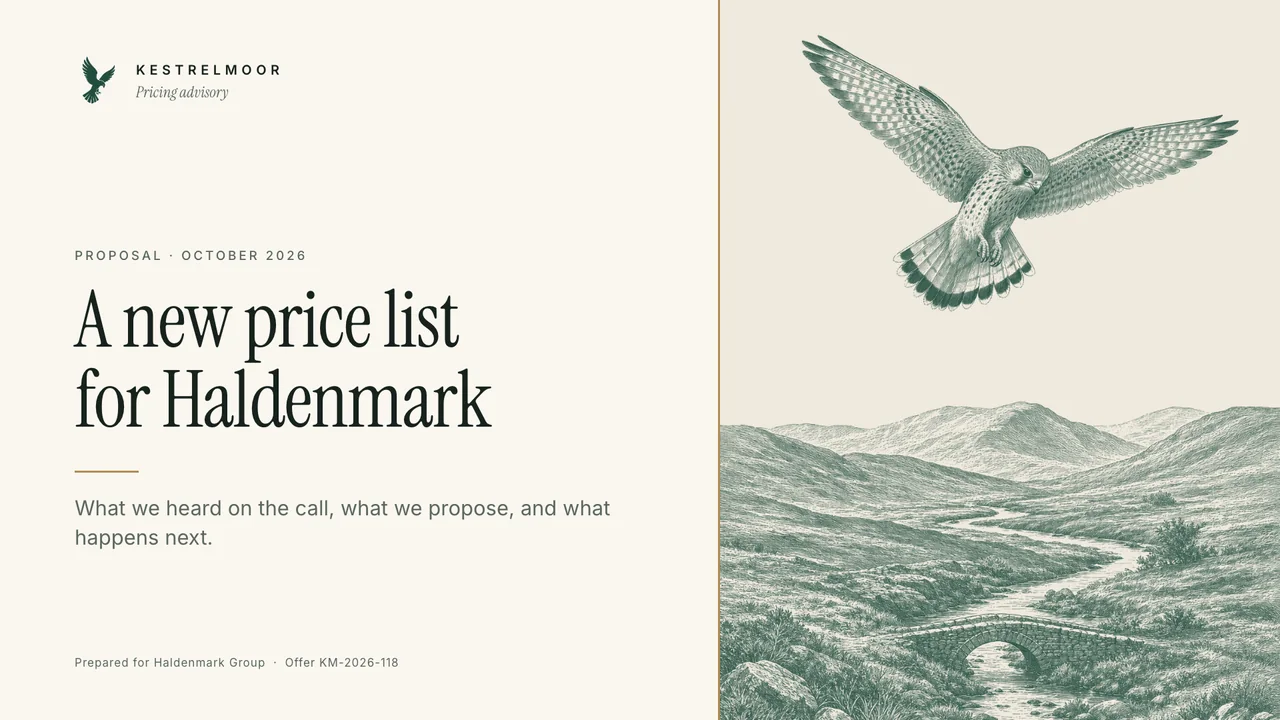
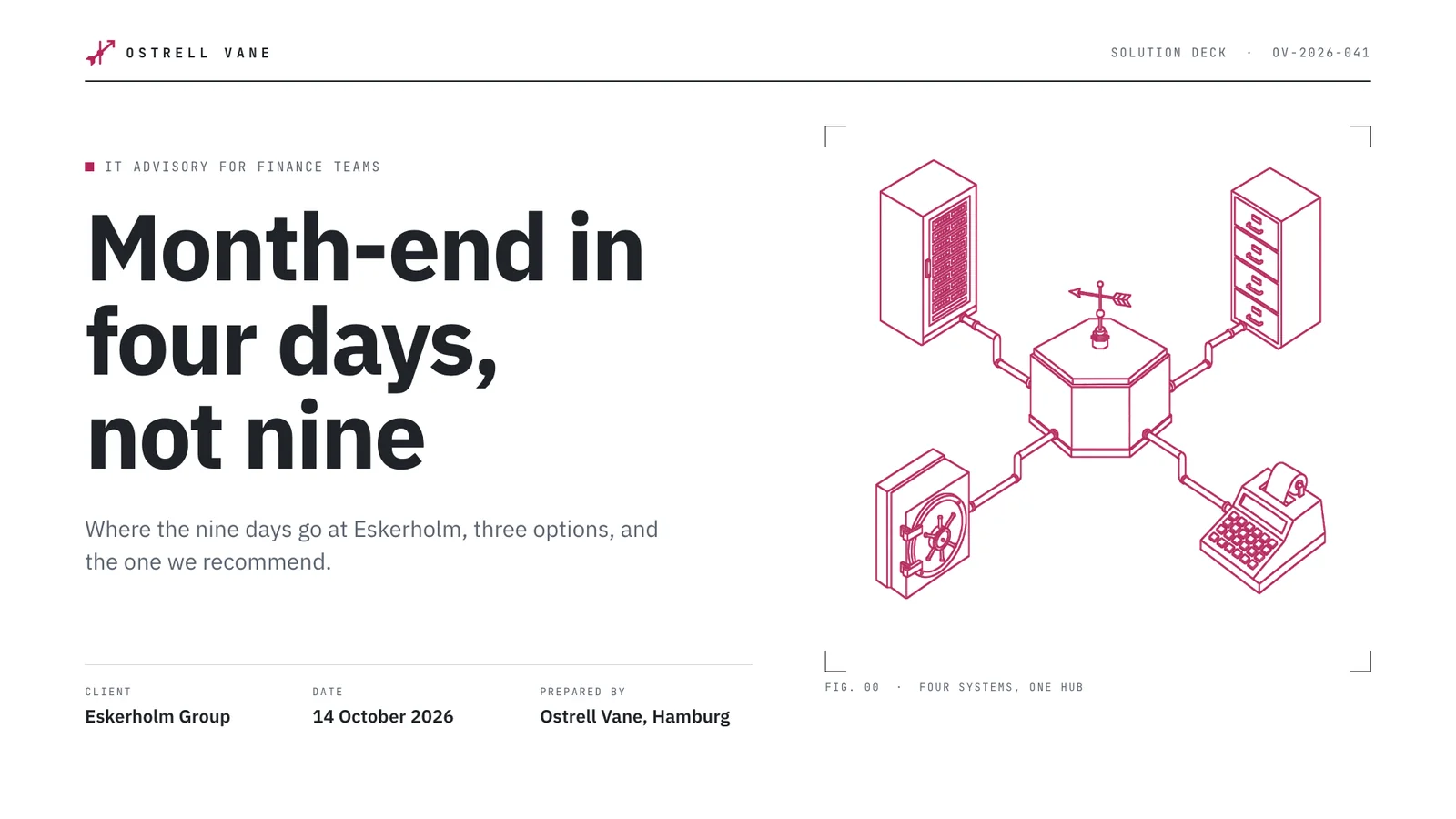
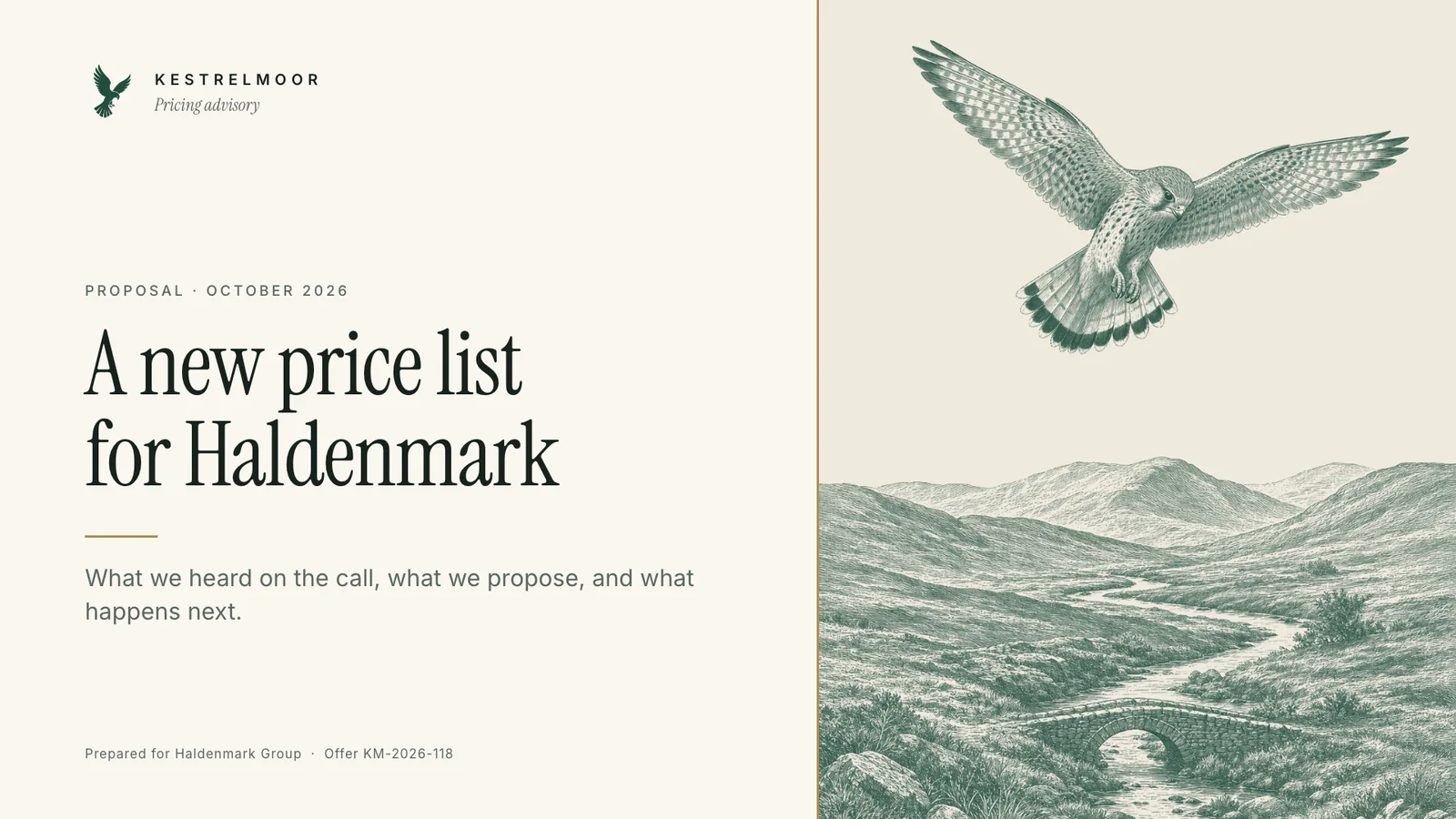
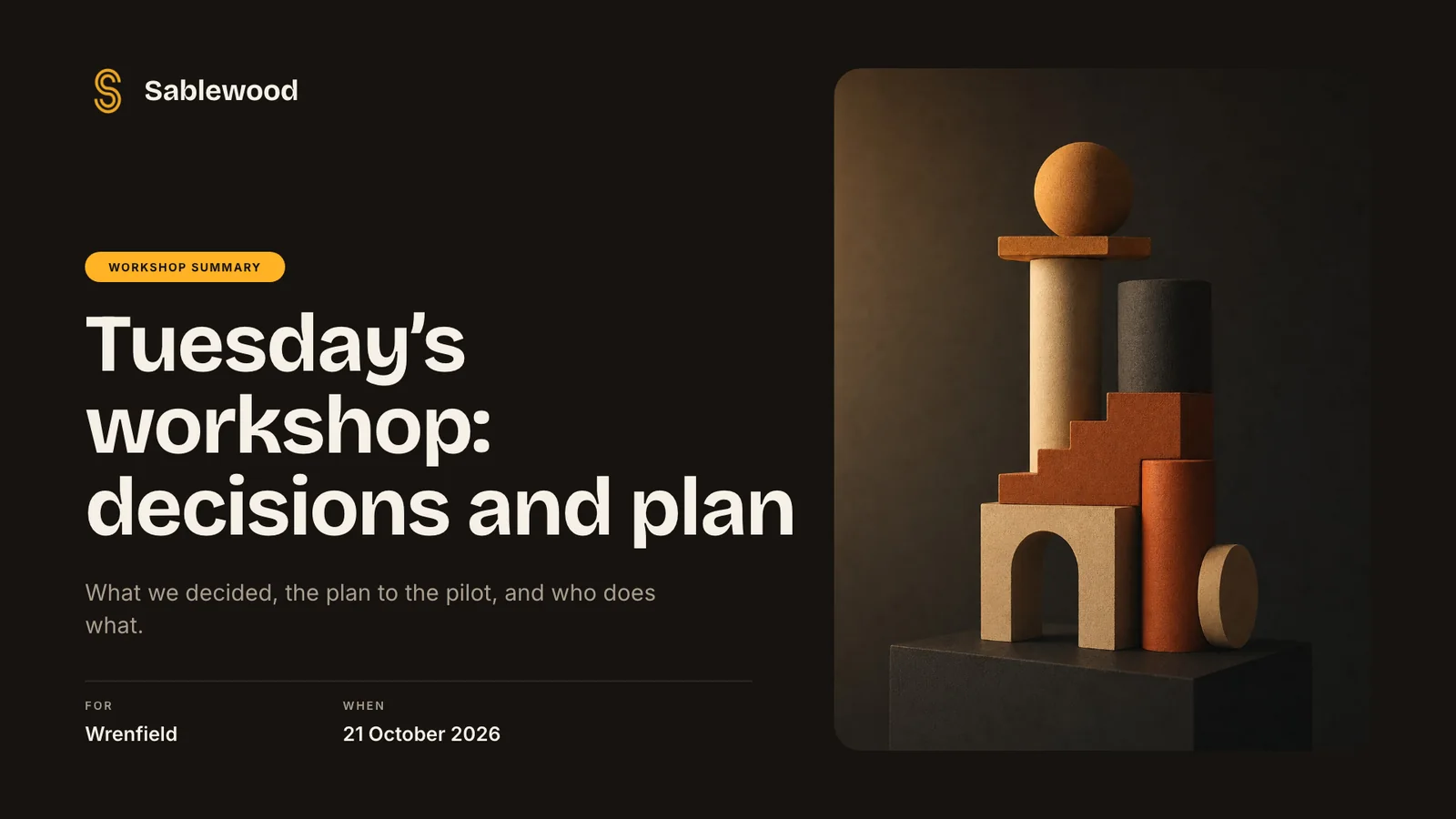
No template? Choose No template? Start from your website and give its address. CoPage reads your colours, fonts and logo from the page and, under See the looks, shows them in four looks it designed, each with the same 18 layouts. Calm is picked to start with. Pick one and Build my brand kit.
| Look | Suits | Best at |
|---|---|---|
| Calm | Consultancies, research and advisory firms, law, finance | Findings and reports, a solution deck that argues a case, a board update |
| Bold | Agencies, event companies, startups | Campaign proposals, pitches, short offers, anything on a big screen |
| Structured | IT services, software houses, pricing and process consultancies | An offer with scope, price and plan, a solution deck, a workshop summary |
| Warm | Trainers, education, people and culture topics | Training material, workshop decks, course slides |
The 18 layouts: Cover, Agenda, Section, Statement, Title and text, Two columns, Three points, Four points, Numbers, Picture and text, Full picture, Chart, Table, Timeline, Team, Quote, Title only and Closing.
A theme from your website uses no AI, takes nothing from the AI budget and doesn't count against the workspace's brand kits. It takes under a minute. Colours and fonts can be changed on the theme's page afterwards.
A ready-made theme
At the bottom of Themes, Ready-made themes are the four looks in CoPage's own colours. Use this theme adds one to the workspace as its own theme, with its 18 layouts and a brand skill. No AI, and it isn't a brand kit. A presentation made in a workspace with no theme of its own starts in Calm; Change theme in the new presentation dialog picks another.
Change a theme
A theme's page shows its layouts and what belongs to it (its layouts, skill and images). From there you change its colours, fonts and logo, and open a new presentation in it. Your assistant can change a theme too, when you ask.
- History on the theme's page lists who set it up and from which files, and every later change to its colours, logo, fonts and layouts, newest first. It is a record; nothing in it can be undone from there.
- Delete theme… says what goes with it. Presentations made with it keep their slides, colours and fonts.
- Delete brand kit… (owners and admins, in the ⋯ menu by the theme's name) removes what the kit made: the theme, its layouts, the skill and its images.
- The brand skill: when an owner's or admin's kit is ready, its skill is shared with the workspace, so every assistant connected there follows it. An editor's kit keeps its skill as their own until they propose sharing it in Library → Skills. Owners and admins can stop sharing it from the ⋯ menu.
For website owners: the brand reader
When someone gives CoPage a website, CoPage reads that one page, the stylesheets it links (up to 20) and up to four
logo files, from public addresses only. It identifies itself as CoPage-BrandRead/1.0. It keeps no copy of the page:
what it found (colours, fonts, logos, the site's name) goes back to the person, who checks it before saving a theme.
It reads nothing else on the site.
Questions
Can we use our own PowerPoint template?
Yes: that is the brand kit. Drop the .pptx or .potx, with its PDF if you have one. In a pilot, we build your theme with you.
What if our fonts aren't in CoPage?
CoPage maps a font it doesn't have to the nearest one it bundles. PowerPoint uses the fonts installed on each computer, so set up the theme with fonts your team has. See Export.
Who can make themes?
Owners, admins and editors of the workspace. Viewers and guests use the workspace's themes.