Documentation/Your first presentation
Your first presentation
A Get started checklist waits in the corner of the app. It takes you through your theme, an example presentation in it, connecting Claude or ChatGPT, a first real presentation and a first change. Steps 1 to 4 take 11 to 17 minutes by the app's own estimates.
While steps are left, the checklist opens by itself once a session, and it waits in the corner of the app whenever you close it. A step ticks because the thing happened: your theme is in, your assistant connected, your presentation was built. Only the example and the tour tick by being looked at.
The steps
| Step | About | What you do |
|---|---|---|
| 1. Add your theme | 3–5 min | Drop your presentation template or point at your website |
| 2. See your example presentation | 1 min | Open six slides CoPage set in your theme |
| 3. Connect Claude or ChatGPT | 2–3 min | Add CoPage as a connector in the chat you use |
| 4. Build your first presentation | 5–8 min | Give your assistant a sales call and get an offer back |
| 5. Ask for a change | 2 min | Point at a slide and say what to change |
| 6. See where things are | 2 min | A short tour of the app |
1. Add your theme
Drop your presentation template or point at your website. CoPage turns it into a theme: your colours, fonts, logo and layouts. Every presentation in the workspace is built in it. No template to hand? Use a ready-made one and change it later. All the ways are on Themes and brand kit.
2. See your example presentation
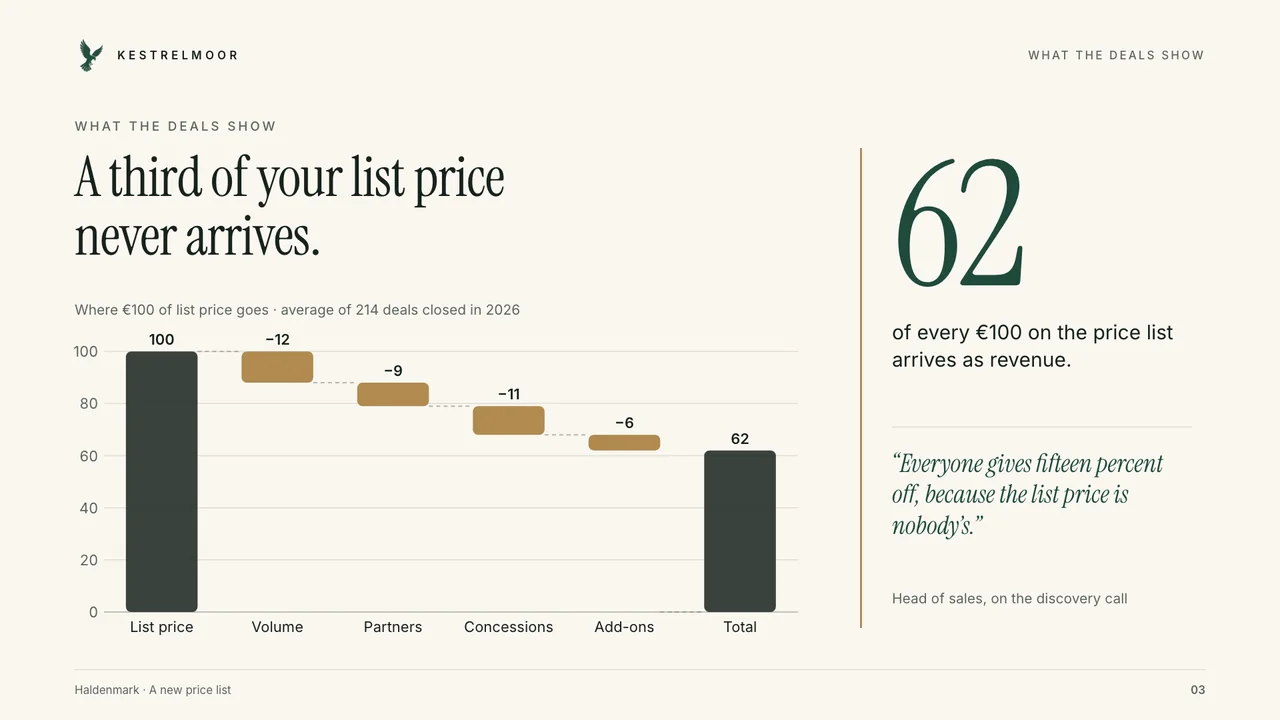
CoPage sets six example slides on your own layouts, so you see what a presentation looks like in your theme before you connect anything. It opens as a presentation you can edit or delete.
3. Connect Claude or ChatGPT
Your assistant writes the slides; CoPage is where they appear, in your theme. The connection works in this workspace with your access, every change it makes is in the history, and you can disconnect it at any time. The clicks for each app are on Connect Claude or ChatGPT.
4. Build your first presentation
Build an offer from a call starts from a sample sales call, or from your own transcript. Copy the one prompt, paste it into your assistant's chat, and watch the presentation build in CoPage. The slides arrive one by one, usually within a few minutes. If the chat asks you to allow CoPage, allow it there: your assistant waits for you. The step ticks when your assistant says it has finished.
5. Ask for a change
Mark an area on a slide, write what you want, and address the comment to your assistant. Then ask it to handle your comments: Ask your agent → Handle my comments opens the chat with that request typed in. It makes the change and answers under your comment. More on Editing, comments and history.
6. See where things are
A short tour: Home, the Library, Checks, then your newest presentation, what each place is for and when you would use it. You only look; Next and Back move you on.
After the checklist
Once your first presentation is built, Home leads with the use cases. CoPage has four; each says what you bring and what you get, and gives you the prompt for your assistant.
| Use case | You bring | You get |
|---|---|---|
| Offer after a sales call | The call's transcript, or your notes, and the offer's goal in one line | An offer in your theme: what we heard, the approach, scope and price, next steps. 8 to 10 slides |
| Solution deck for a client's problem | Your sources (reports, notes, numbers) and the client's problem in two sentences | A deck that argues a case: the problem, the options, the recommendation, the plan, the risks. About 20 slides |
| Summary of a workshop or a weekly | The meeting's transcript, and links to the tasks if you have them | What was decided, the plan, who does what, each task linked. 5 to 8 slides |
| Tender offer from a brief | The client's brief and your cost estimate, and what should win it | An offer that answers the brief point by point, with your costs. 12 to 15 slides |
The tender offer ends with a slide that lists the brief's points, and its prompt asks your assistant to run the Tender offer pack of checks, which looks for a point left unanswered when AI checks are on. More on use cases.
Questions
Do I have to finish the checklist?
No. Close it and it waits in the corner. Each step ticks when the thing happens, however you got there.
Can I start without a template?
Yes. Use a ready-made theme, or point at your website and pick one of four looks. See Themes and brand kit.
Is the sample call real?
No. The company, the people and the figures in it are invented, and the app says so where it shows them.